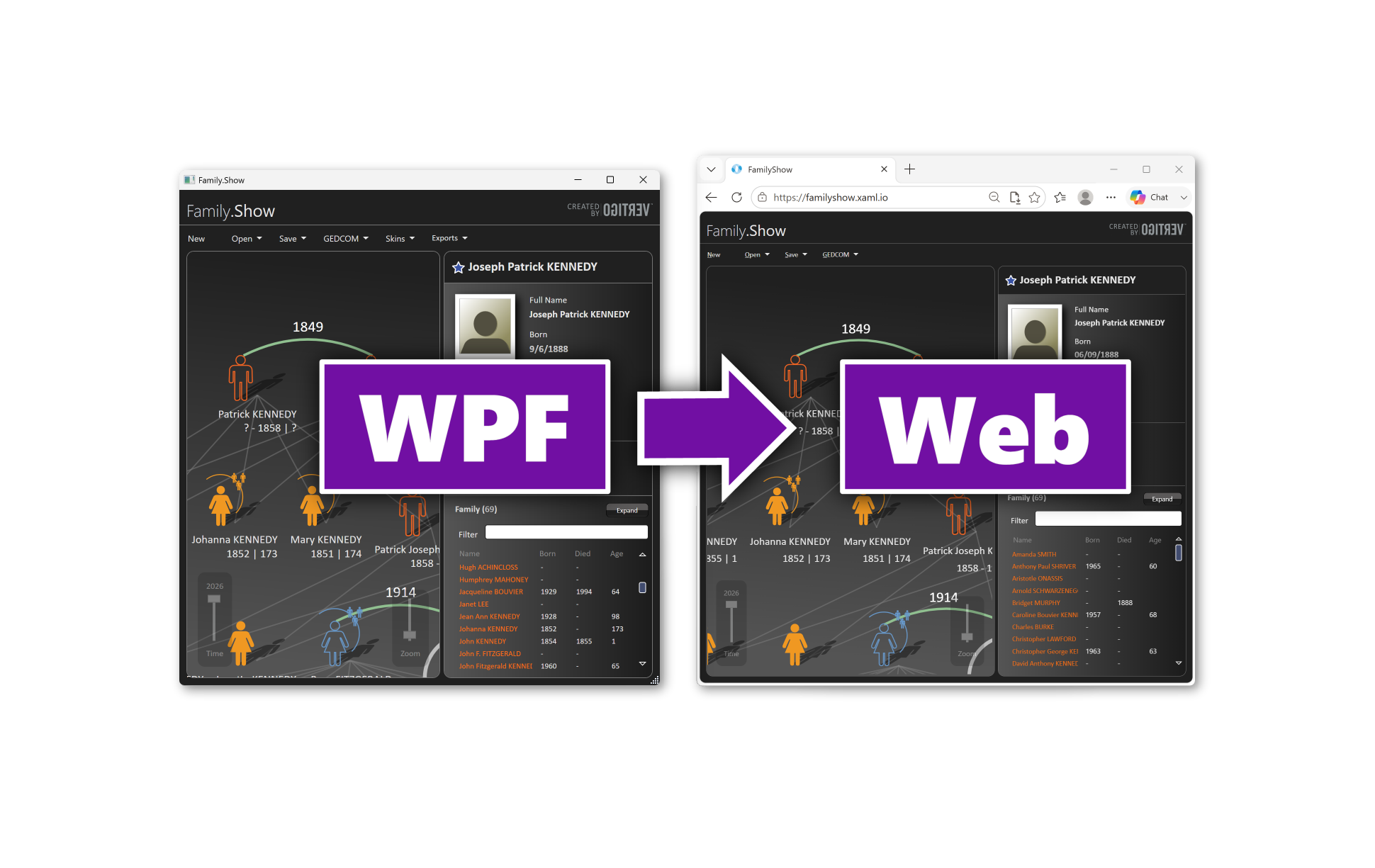
XAML.io v0.8 introduces Migrate from WPF, a set of free, in-browser tools for bringing an existing WPF application to the web. You can (1) point them at a compiled build and get an instant, feature-by-feature compatibility report, (2) import a project and run it in the browser, or (3) hand a production application to our team for an end-to-end migration. The technology underneath is OpenSilver, the open-source framework that runs WPF-style C# and XAML on the web by compiling C# to WebAssembly and rendering XAML as real HTML DOM elements.
WPF developers are right to be skeptical of the phrase “runs in the browser,” so this post is deliberately heavy on code, screenshots, and a reference migration you can open and inspect yourself. The aim is to show how the tooling works and where its limits are, not to win you over with an adjective.
A one-minute look at Migrate from WPF, from importing a WPF app to running it in the browser.
New to XAML.io? XAML.io is a free, browser-based IDE for building .NET apps with C# and XAML: a drag-and-drop designer with 100+ controls, a code editor, and in-browser .NET compilation via WebAssembly. No install, no signup. Built by Userware, powered by open-source OpenSilver. Try it →
What “Migrate from WPF” is
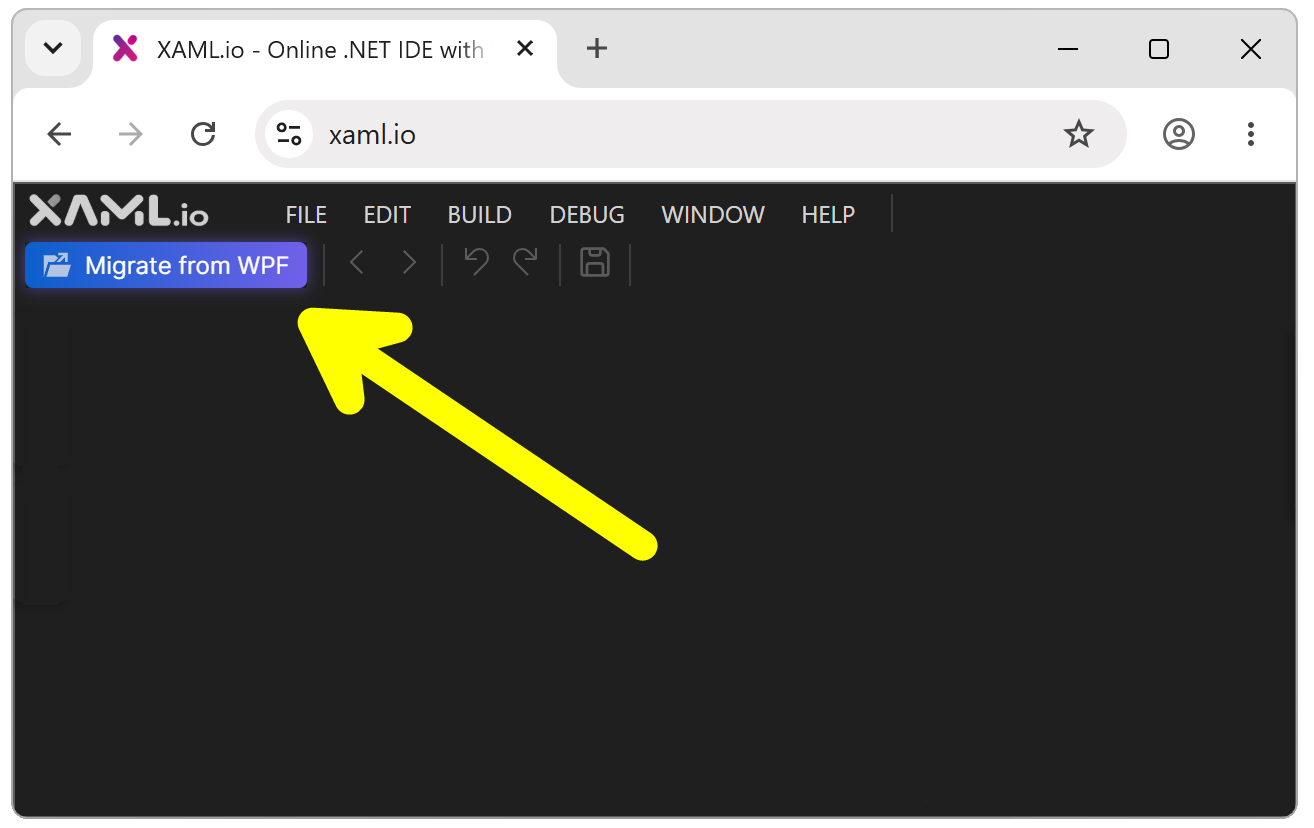
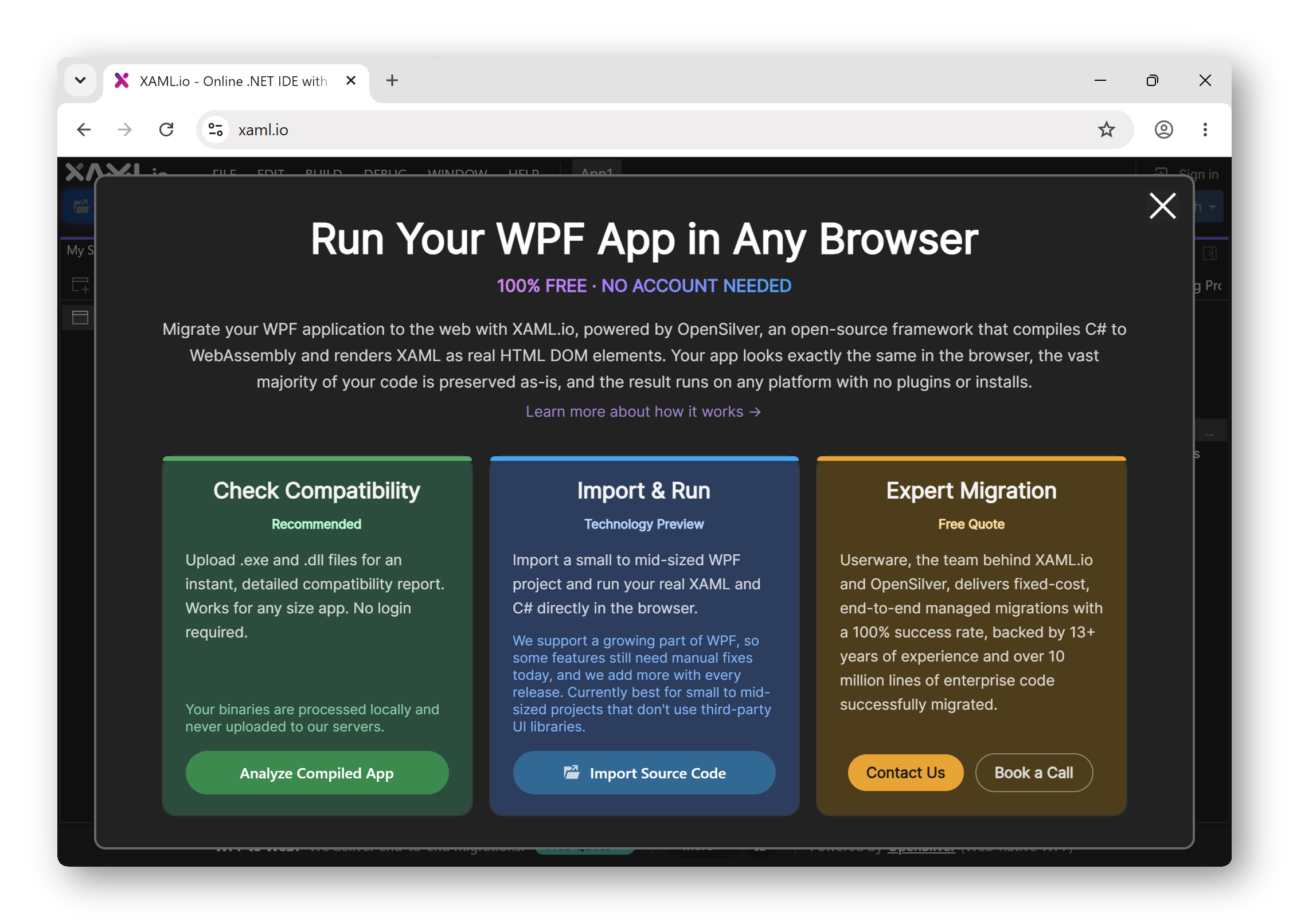
It is a single window in the IDE, organized around three tasks that correspond to three different starting points:
- Check compatibility. Drop in your build output and get a report. Free, works at any size, no signup, and your code never leaves your computer.
- Import and run. Import a project and see it compile and run in the browser. Self-serve, currently a Technology Preview, best suited to small and mid-size projects today.
- Have us migrate it. For a production application, our team handles the migration end to end at a fixed cost.
The rest of this post follows the path a developer actually takes: run the analyzer, import the source, review what the tooling changed, and decide what remains. First, the reasonable question that comes before any of that.
Why move a WPF application to the web
WPF is a mature, capable framework, and it is not going away on the desktop. The reason teams put these applications on the web has to do with delivery, security, reach, accessibility, and compliance, not with the language or the UI model.
A Windows-only application has to be installed and kept current on every machine that runs it. On the web, it is deployed once and updated for everyone in a single step, and it is reachable from any device with a browser rather than only from a managed Windows PC. It also runs inside the browser’s security sandbox instead of as a desktop process with full access to the user’s machine, which is a meaningful change in regulated environments. And because OpenSilver renders real HTML rather than painting to a canvas, a migrated app inherits genuine accessibility: screen readers, keyboard navigation, find-in-page, browser zoom, and translation all work, which is the foundation that standards such as Section 508 and EN 301 549 require. The same C# and XAML can keep shipping as a desktop build in parallel for as long as you need it.
If none of that applies to your situation, the sections below still work as a technical tour of how far OpenSilver’s WPF compatibility has come.
Does your code actually run, and is it fast enough?
This is the question most WPF developers ask first, so to be precise about it: OpenSilver is not a XAML-only trick, and it is not a transpile-to-JavaScript layer. It compiles your C# to the .NET runtime for WebAssembly. Your code-behind, your view models, your services, and most non-UI NuGet packages, meaning anything that already runs on Blazor WebAssembly, execute as real .NET, unchanged. The part that gets reimplemented lives inside the framework, not in your code: OpenSilver provides the UI layer, so each XAML control knows how to render itself as DOM. Your own C# and XAML stay as they are.
Performance follows from that. After a one-time download of the runtime, the application runs as compiled .NET in the browser, and production builds can use AOT compilation. For the software that is usually written in WPF, forms, data grids, navigation, and reporting, it is comfortably responsive. It is not a native game engine, so if your application does heavy real-time rendering, benchmark it before you commit. We would rather you measure your own app than take a number from us. In practice, though, performance has not been a wall: modern browser engines are heavily optimized for laying out large amounts of text and complex DOM, and OpenSilver is a thin layer on top of that. The easiest way to judge it for yourself is to try two live examples. XAML.io itself is built on OpenSilver: the drag-and-drop designer, IDE, and in-browser compiler at xaml.io are one demanding OpenSilver application running in the browser. And familyshow.xaml.io is a migrated WPF app you can open and use. As you interact with it, you are running compiled .NET code that renders to real DOM in the browser.
Step 1: the free compatibility report
Drop in the contents of your bin folder: the .exe, the .dll files, and any third-party libraries you ship. XAML.io reads the compiled IL with Mono.Cecil, walks every method, and classifies what your application actually uses across 34 WPF and platform feature areas:
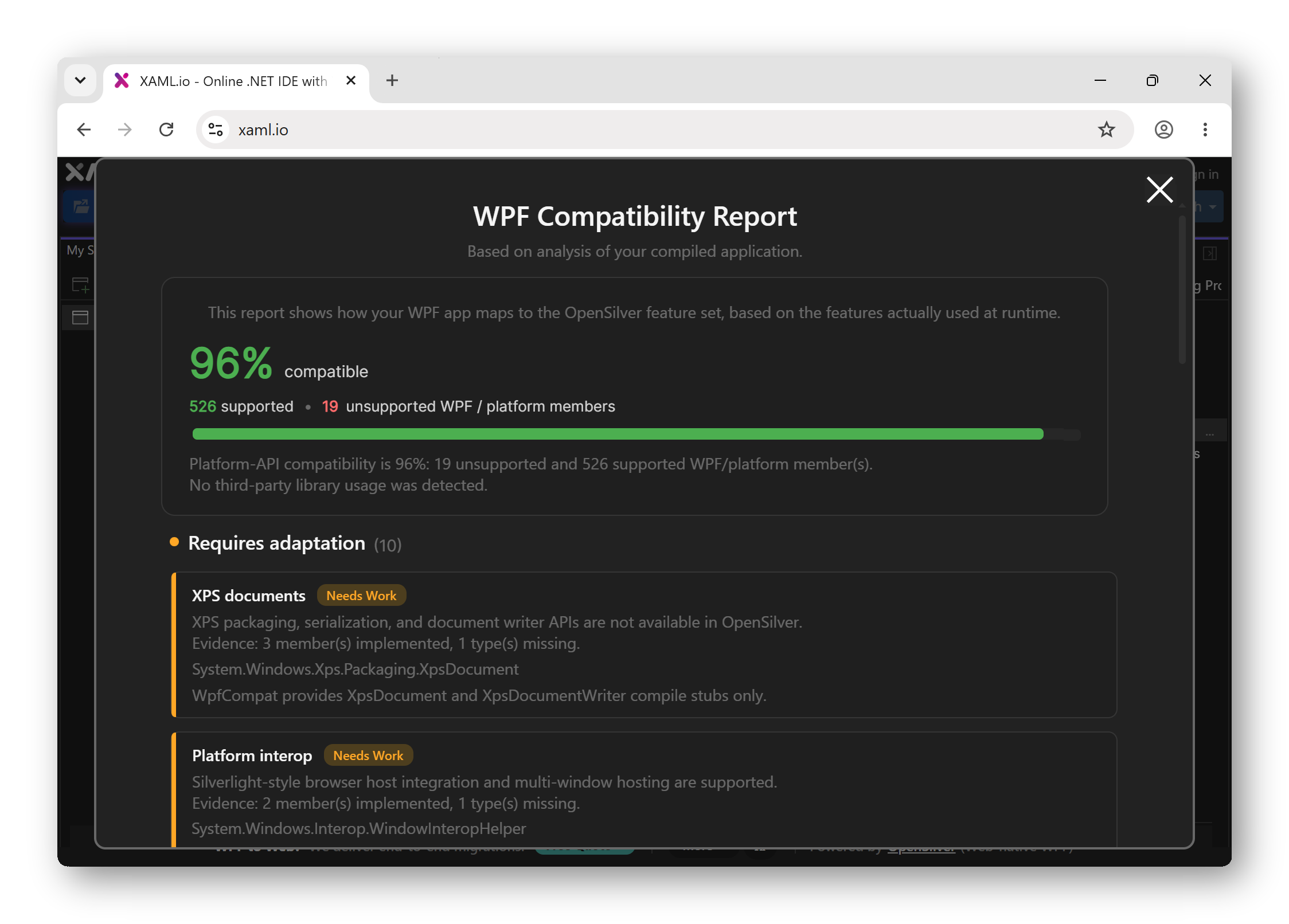
Two design choices make the report useful:
- Your code never leaves your computer. The analysis runs entirely in your browser: XAML.io reads your assemblies locally, and the only thing sent to our server is an aggregated list of the unsupported features it found, which is a list of API names, not your code. Your binaries, your IL, and your source stay on your machine, and you can export the full report to
.xlsx. - It works for an application of any size. This is the honest answer to “how big is this job?” before you commit to anything.
The score is a map, not a verdict. A “blocking” item may be a single Win32 call you can swap out, and many “needs adaptation” items have a one-click fix, which is the subject of the next step.
Step 2: import the source, and review every change
Import a .zip or a folder, and XAML.io builds a solution, switches to the WPF theme automatically (more on that below), and attempts to compile and run it on OpenSilver.
The most important design decision in the tooling is what it does not do: it does not rewrite your code with AI. A tool that regenerates your UI can silently change behavior, and for a working business application that is exactly the risk you are trying to avoid. Instead, the approach is to keep your original code and make the framework support it. Wherever possible, we implement the WPF feature directly in OpenSilver; for everything else, a compatibility layer called OpenSilver.WpfCompat fills in the gaps. Both live under the original WPF namespaces, so your type names and using directives do not change. When the tooling does have to modify your code, it does so with small, mechanical, visible edits that you can review, not a regenerated file you have to trust.
Here is what those edits look like in practice.
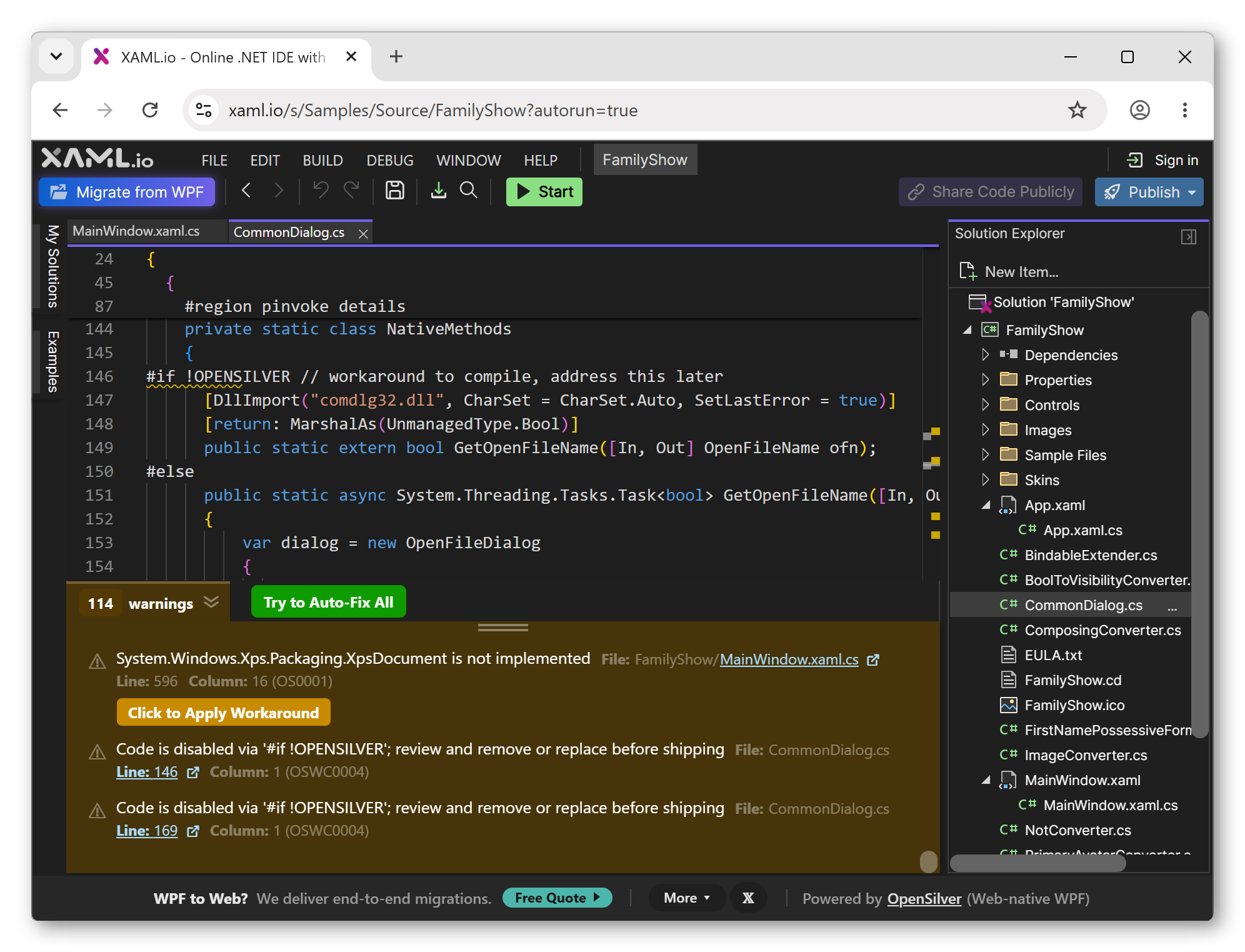
A supported-but-different API becomes a one-click fix. A synchronous WPF file dialog becomes its asynchronous OpenSilver equivalent:
// before
var dlg = new OpenFileDialog();
if (dlg.ShowDialog() == true)
    LoadDocument(dlg.FileName);

// after the code fix (OS0001 → FileDialogAsync)
var dlg = new OpenFileDialog();
if (await dlg.ShowDialogAsync() == true)
    LoadDocument(dlg.FileName);
Going async has consequences, and the tooling accounts for them: a companion fix marks the method async and propagates await up the call chain, so you are not left with a half-converted method that will not compile.
Opening a URL with Process.Start becomes a browser navigation:
// before
Process.Start(helpUrl);

// after the code fix (OSWC0015 → ProcessStartUrl)
HtmlPage.Window.Navigate(helpUrl, "_blank");
Something that genuinely cannot run in a browser is wrapped, not deleted. Your original line is preserved behind a compiler directive, and the browser build gets a non-fatal notice instead:
#if !OPENSILVER // workaround to compile, address this later
    NativeMethods.SetWindowComposition(_hwnd, ref data);
#else
    OpenSilver.WpfCompat.Porting.AlertCodeWasDisabled(
        "Win32 window composition isn't available in the browser.");
#endif
Unsupported XAML is commented out, not silently dropped:
<!-- XAML_IO: Unsupported attribute removed: TickFrequency="2" -->
<Slider Minimum="0" Maximum="10" />
Every one of these edits appears in the IDE as a Warning, so you get a complete, reviewable list of everything the tooling touched. Nothing is hidden in a file you will never reopen. Two Roslyn analyzers, OSWC0004 and OSWC0005, exist specifically to flag this migration scaffolding so you can clean it up before you ship.
Runtime porting alerts: what breaks when you run it
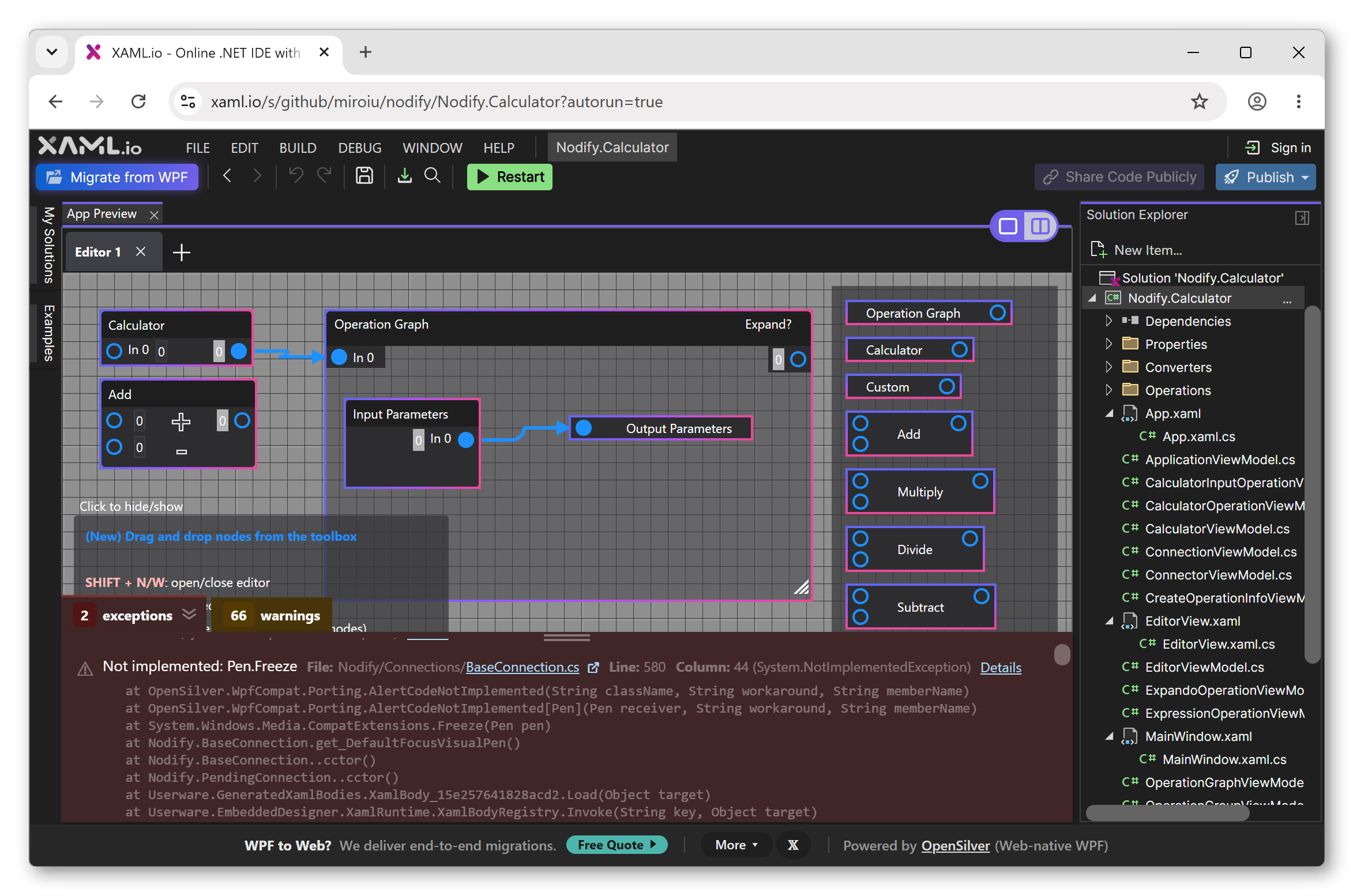
Compile-time lists are useful, but the question that matters during a migration is what breaks when the app actually runs. So when execution reaches code that was disabled, or a method that is still a stub, OpenSilver reports it as it happens, with the message, the method, and the file and line:
[OpenSilver Porting] Code was disabled during migration:
  Win32 window composition isn't available in the browser.
    at MainWindow.ApplyBlur() in MainWindow.xaml.cs:line 142
  (execution continued, the app did not stop)
It reads like an exception with a stack trace, but it does not propagate and does not stop the application. You can run a half-migrated app immediately and work through these one at a time, instead of facing a wall of compile errors before you can see a single screen. The mechanism is Porting.AlertCodeNotImplemented and AlertCodeWasDisabled; the output channel is configurable (debug output, the console, an in-app notification, or a .NET event carrying a full stack trace), and it de-duplicates to one alert per location per session. It only ever appears in a migrated application, never in one you build from scratch.
Status: in-browser source import is a Technology Preview. It works best on small and mid-size, self-contained projects; on a large application with third-party UI suites you will hit gaps. That is exactly why the analyzer in Step 1 exists: run it first so there are no surprises. We add WPF features, analyzers, and fixes every week, so the set of projects that “just import and run” keeps growing.
A reference migration you can inspect: Family.Show
Family.Show is the family-tree application Vertigo built for Microsoft shortly after WPF shipped, and it has served as a canonical WPF reference sample ever since. It is a real, polished application with custom controls, animations, data templates, drag-and-drop, and photo handling, which is what makes it a fair test rather than a rigged demo. It runs in the browser on OpenSilver with only minor changes, with 97% of the original code untouched, measured as a line-by-line diff of the C# and XAML between the original and migrated codebases.
We have published every artifact so you can verify that instead of trusting the number:
- Run the migrated app: familyshow.xaml.io
- Open the full migrated solution in the online IDE: xaml.io/s/Samples/Source/FamilyShow, where you can read the code, run it, change something and re-run it, or fork it as your own copy, all in the browser with no signup.
- Diff it against the original WPF source: Family.Show on GitHub
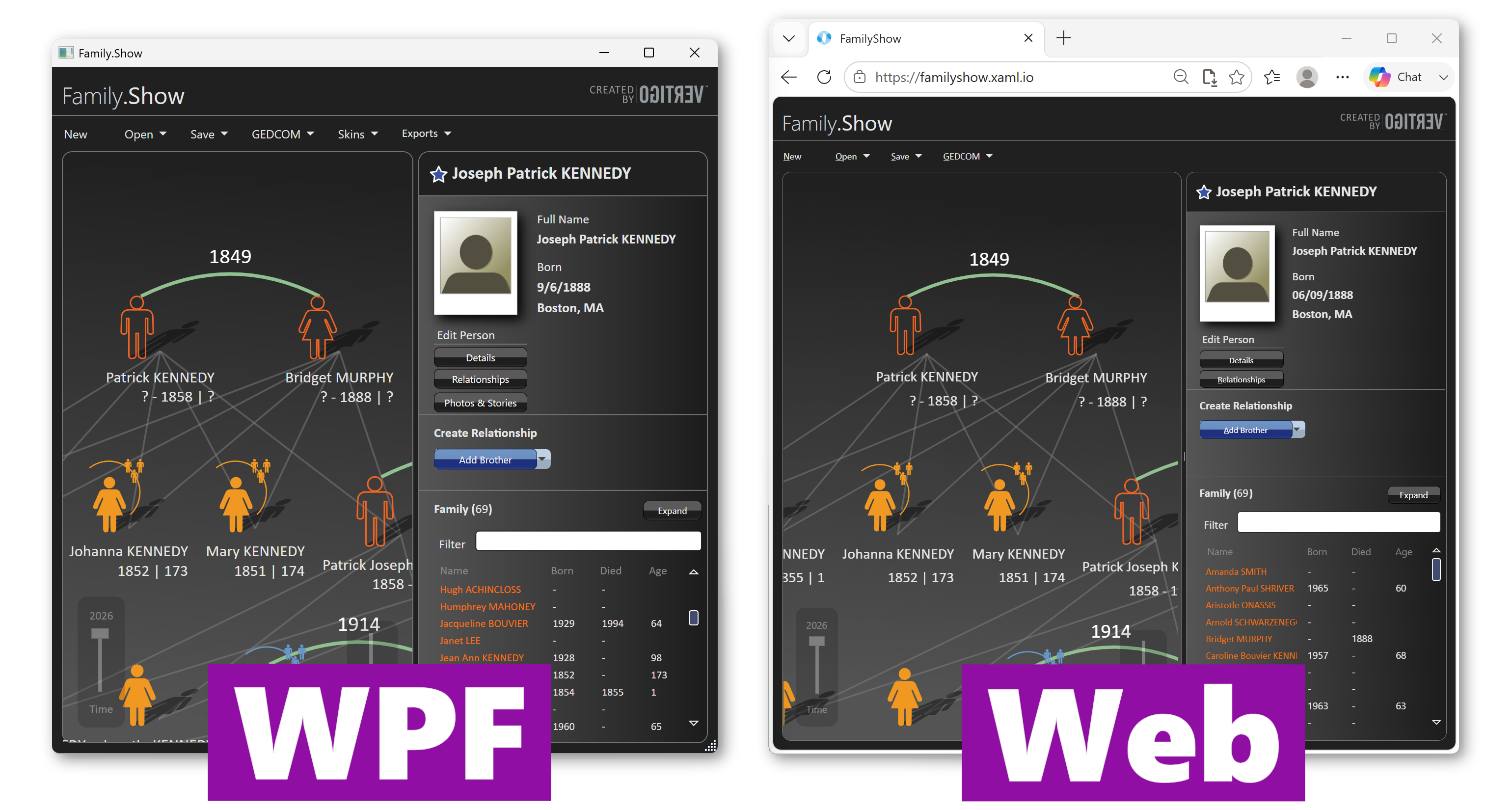
The migrated app is also light for what it is. The running application, including the entire .NET runtime, is 8.1 MB compressed, with no plugin to install, so over a CDN it loads in a few seconds and is then cached for return visits.
Open the original and the migrated source side by side, and diff them. That diff is the most honest specification we can offer for “minimal changes.”
Your app should still look like your app
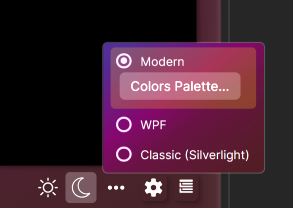
XAML.io ships three themes, which are the default styles and control templates its built-in controls use:
- Modern: contemporary and flat; the default for new projects.
- WPF: the classic Windows (Aero2) look, ported from WPF’s own default templates.
- Silverlight: the original Silverlight defaults, for pixel-faithful Silverlight migrations.
When you import a WPF solution, XAML.io applies the WPF theme automatically, so the app looks like itself on the first run. If the classic look feels dated, you are not stuck with it: switch to the Modern theme, adopt responsive layouts, and restyle individual controls to modernize the UI incrementally, all on the same C# and XAML, with no rewrite. All three themes are open source; the WPF theme lives in OpenSilver.Themes.Wpf under the MIT license, so you can retheme everything or override a single control template.
Common questions, answered directly
If you are evaluating this seriously, you have objections. Here are the ones we hear most.
What about my Telerik, DevExpress, or Syncfusion controls? Third-party UI control suites do not work out of the box in the self-serve tools yet. This is the real ceiling on fully automatic WPF migration today, and we are not going to pretend otherwise. There is a path forward: a Telerik Compatibility Pack exists now (contact us), a ComponentOne port is underway, and in managed migrations we port or replace vendor controls as part of the project. It is worth knowing that non-UI libraries that already run on Blazor WebAssembly generally run on OpenSilver as-is, so the work concentrates in the UI controls. We are also in active conversations with the major component vendors, and we expect broader out-of-the-box compatibility over time.
How much really carries over? The expensive, risky parts come with you: business logic, view models, converters, data binding, styles, resources, and most custom controls. That is the entire reason to stay in C# and XAML rather than rewrite in a different language and UI model. Less work, fewer regressions, and a codebase your team still recognizes.
Will it look identical? When a feature is supported, it renders identically; we are not currently aware of a supported feature that looks different from its WPF original. Visual differences come up only when something is not yet supported and has to be replaced, for example when a complex piece is more easily swapped for a JavaScript library, and cases like that keep getting rarer as coverage grows.
WPF apps look dated. Isn’t a rewrite the only way to modernize the UI? No, and this is a common reason teams reach for a rewrite they do not need. The look and the code are separate concerns. You keep the code and change the styling: move from the WPF theme to the Modern one, add responsive layouts, and restyle controls incrementally. You get a contemporary, responsive UI without rebuilding the application in another framework.
What can never work in a browser? Some things genuinely cannot, and we flag them explicitly rather than stubbing them silently: Win32 and P/Invoke, native interop, and direct hardware access. Where a feature is simply not implemented yet, we say so, and that list keeps shrinking. Where it is a hard browser boundary, we tell you, so you can plan an alternative.
Does my code get uploaded to your servers? Only if you sign in and use a feature that needs it. The entire self-serve flow (analyze, import, fix, run, and export a Visual Studio solution) requires no signup and can run entirely in your browser:
- Compatibility analyzer. Your binaries and your code are never sent to us, signed in or not. The analysis runs locally and uploads only an aggregated list of unsupported features, which is a list of API names.
- Import, signed out. Everything you import, edit, run, and export stays in your browser. There is no cloud feature to send it to, so your code is never sent to us.
- Import, signed in. Signing in adds cloud save, sharing, publishing, and AI features. With auto-save off and none of those features used, everything still runs locally and your code is never sent to us. With auto-save on, or if you use sharing, publishing, or AI, the code those features need is saved to your account, and you stay in control of it: download the migrated .NET solution whenever you like, and delete the stored copy at any time by deleting the solution from My Solutions.
So if your policy forbids handing proprietary code to a SaaS, you can still do the entire migration.
Am I locked into your browser IDE? No. You can download a standard Visual Studio solution at any time and continue in Visual Studio, VS Code, Rider, Cursor, or another editor. XAML.io is as much a migration tool as an IDE: the output is a normal solution you own, and you can use it purely to get your app onto OpenSilver, which is free and open-source, and then work wherever you prefer.
How it works: rendering XAML as real HTML DOM
Among the open-source .NET frameworks that target the web, OpenSilver stays the closest to the WPF API (close enough that Family.Show ports with minor changes) and it is the most browser-native. It renders XAML as real DOM: a TextBox is a <textarea>, an Image is an <img>, a Path is an <svg>. Open a migrated app’s developer tools and you see your actual UI as inspectable HTML.
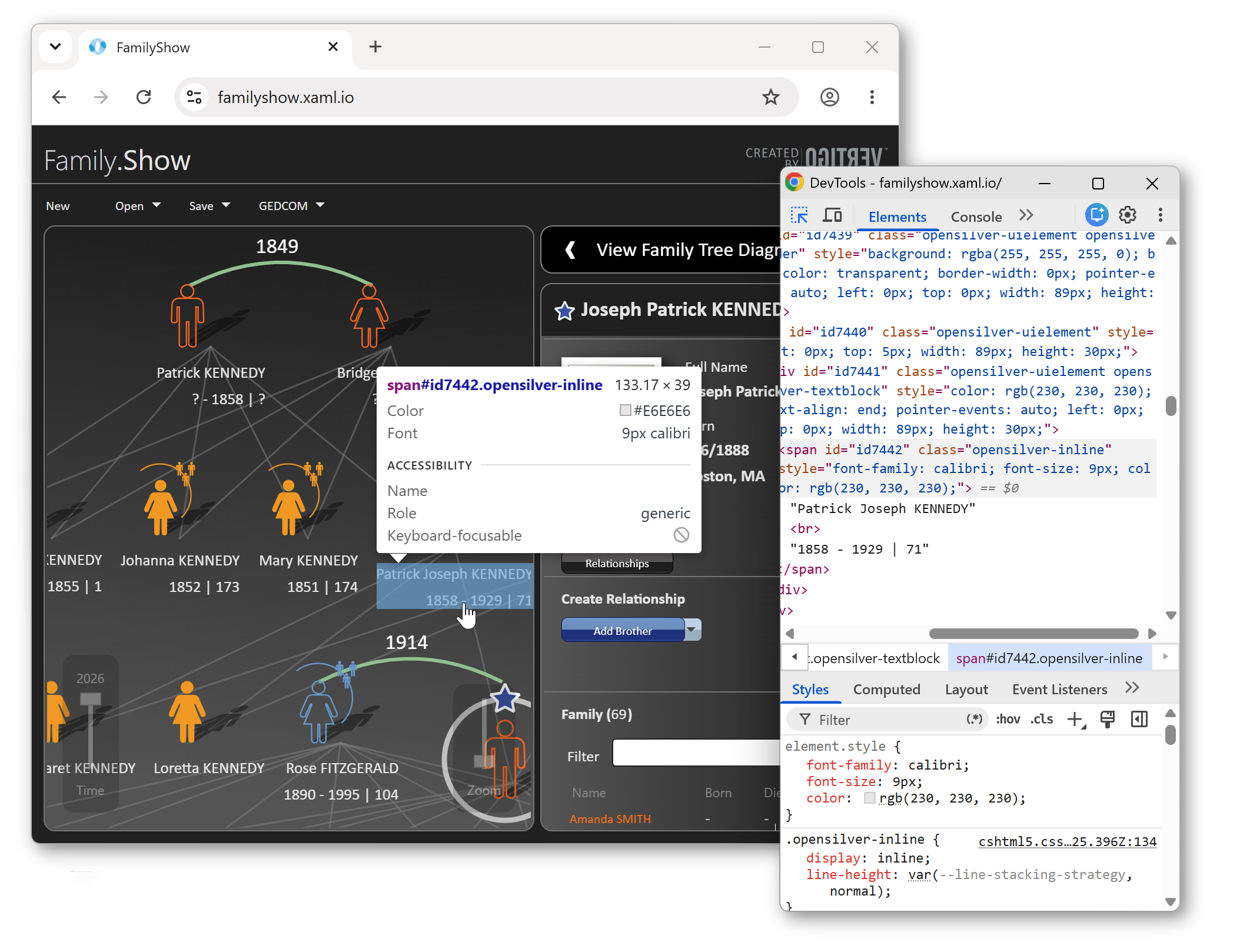
This is not a cosmetic detail; it is the first thing to check when comparing ways to get a desktop app onto the web. Some approaches paint the UI onto a single canvas or a WebGPU surface. The result looks like a web page but is not one: it is essentially one big pixel buffer, so it gives up most of what makes a browser useful. Because OpenSilver emits real DOM instead, a migrated app keeps everything an ordinary web page has:
- Accessibility. Screen readers and ARIA, keyboard navigation, and browser zoom, the foundation for standards such as Section 508 and EN 301 549.
- Text that behaves like text. Find-in-page (Ctrl+F), selection and copy/paste, and one-click browser translation.
- Discoverability. Content search engines can index, so the app can be SEO-friendly where you want it to be.
- The rest of the browser platform. Browser extensions and mobile gestures such as long-press keep working.
- Mix and match. Combine XAML with plain HTML and JavaScript, drop Blazor components into a XAML app, and reach the entire ecosystem of web libraries.
You get the WPF programming model and the full web platform at the same time, with effectively no ceiling on how far you can extend through JS interop.
The runtime has also caught up to a large amount of real WPF. The recent OpenSilver 3.4 preview added, among much else:
- Layout and geometry:
LayoutTransform(long one of the hardest WPF features to bring to the web),CombinedGeometry,StreamGeometry, geometry hit-testing and flattening, and length units in XAML. - Controls:
GroupBox,MenuandMenuItem(checkable, with input-gesture text),MultiSelector,AccessText,Button.IsDefaultandIsCancel, and an enhancedWindow. - Styling and binding: WPF-style triggers,
SystemColorskeys,ResourceKeyandComponentResourceKey,OneWayToSource, andTemplateBindingconverters. - Text and input:
AccessKeyManager,TextCompositionManager, and WPF-style keyboard focus and input-device architecture.
The compatibility layer behind the import tooling, OpenSilver.WpfCompat, is 307 source files, a 420-row porting reference, and 8 Roslyn analyzers with 16 code-fix providers, on top of the one-click XAML fixes XAML.io applies in the editor. As pieces of WpfCompat mature, they graduate into OpenSilver itself, and new features and fixes land continuously. You can follow them commit by commit on the OpenSilver develop branch: the 3.4 preview package is rebuilt on every commit there, and XAML.io updates to the latest build regularly.
When you would rather have it done for you
The self-serve tools are free, with no time limit and no feature paywall. They are built to do real work and are well suited to evaluation and to migrating small and mid-size projects yourself.
A production migration of a large application is a bigger undertaking, and it is the work we do for a living. We are the team behind both XAML.io and OpenSilver, and we have spent more than 13 years migrating enterprise XAML applications, across Silverlight, LightSwitch, and WPF, to the web: over 10 million lines of production code for organizations including DENSO, Tata Communications, Symcor, LiveData (surgical software in healthcare), and Repton (education), among many others across financial services, manufacturing, and the public sector.
The engagement model is deliberately low-risk:
- It begins with a free compatibility analysis and a fixed-cost quote, broken into milestones with a timeline.
- Rather than rewriting your app, we extend OpenSilver itself to support what your app uses, so as much of your original code as possible stays untouched.
- You receive milestone deliveries as Visual Studio solutions you can compile and test. Your codebase stays intact, you keep working while we work, and we merge your changes.
- We help you ship to production, with optional ongoing priority support.
- If you need a WPF feature OpenSilver does not support yet, you can fund its development, and it ships to everyone in the open-source framework, not only to you.
This is what funds the free tools and the open-source framework. So if you have a WPF application that needs to be on the web, talk to us.
Also new in v0.8
- Example gallery, built into the IDE. A gallery of example projects inside XAML.io: open any of them in the online IDE in one click, run it in the browser, make and test changes, or fork it as a starting point for your own project.
- Static web build export. Generate a set of static files, straight from the online IDE, that you can host anywhere: Azure, AWS, GitHub Pages, Netlify, Cloudflare Pages, or any plain HTTP server.
- Latest OpenSilver 3.4 preview, with the WPF features listed above and new work landing continuously.
- Also soft-launched since v0.7: a revamped New item menu with Class Library projects, incremental compilation, and Navigate Backward and Forward.
What’s next
WPF is where most of the team’s effort goes right now. Ahead: more WPF support every week; more ways to publish a finished app, including one-click deployment to an xaml.io-hosted URL, native iOS and Android apps, and signed desktop apps; and VB.NET support under consideration. Expect a fair amount of IDE polish too, along with a few larger features we are not ready to talk about yet. These are directions rather than promises.
Try it
Open xaml.io, choose Migrate from WPF, and drop in your bin folder for a free compatibility report. It is the fastest way to find out how far your WPF application already is from the web. And if you hit something missing, tell us; there is a good chance it is already on the roadmap.
xaml.io | Free. No install. No signup. · Talk to our migration team →
Writing about this? A press kit with logos, high-resolution screenshots, a fact sheet, and quotes is available at blog.xaml.io/post/press-kit-v0.8.
Powered by OpenSilver. XAML.io is built on OpenSilver, the open-source framework that runs WPF-style C# and XAML in the browser via WebAssembly, and, through MAUI Hybrid and Photino, natively on mobile and desktop. Migrating a WPF, Silverlight, or LightSwitch application? Our team can help →